Features
Everything you need to give, grade and record a multiple-choice test
Upload the test you already have, print as many versions as you want with their bubble sheets, and grade the whole class of answer sheets from one copier scan. The answer sheet scanner is optical mark recognition (OMR) software that runs in your browser, with no Scantron machine or special forms, and individual teacher accounts are free.
Import a test from Word or PDF
- Import a Word file (.docx) or a PDF. RapidBubble reads the questions, answer choices, pictures, sections and reading passages.
- It finds the answer key, whether it's an answer line, a key at the end, bold or starred answers, or check marks, and strips those marks so the printed test doesn't give the answers away.
- Anything it wasn't sure about becomes a note on the question for you to check. You can fix any question in the editor before printing.
- Your file is read on RapidBubble's own servers; on the School & District plan, the questions are then checked by Anthropic's Claude (see the Privacy Policy).
- No file? Type the questions in, or just enter the answer key for a test you already have printed.
Shuffled test versions
- Turn an uploaded test into A, B, C, D and more versions. Questions and answer choices are shuffled, and each version's key is worked out for you.
- A reading passage and its questions move together, and sections stay in order.
- Pin a question to keep its number, or pin a choice like "All of the above" to keep its letter.
- Print each version as a packet: the test, then its bubble sheet. Print the answer keys for every version together.
- Every version is graded against its own key, and the results for all versions come together on one results page and in one gradebook column.
- More about making versions of a test.
- Didn't upload a file? Add versions to any test and enter each one's key by hand.
- Duplicate a test with all its versions and keys to give it again next year. How to make versions of a test.
Question types and answer keys
- Multiple-choice tests of any length (100 per printed page), with 2 to 6 answer choices (A–F).
- Mix question types on one sheet: multiple choice, true/false (bubbles labelled T and F), yes/no, "select all that apply" with optional partial credit, and survey items with no correct answer that stay out of the score.
- Matching sets, where each item chooses from up to six shared answers printed once, and sets of true/false statements under one direction line. Shuffled versions keep a set together and shuffle its answers once for all its items.
- Give questions different point values, one at a time or a whole range at once.
- Fix a key after grading and re-score every scanned sheet with one click. Scores you entered by hand are left as they are.
Answer key checks, concepts and standards
- When you import a test, or choose Check questions in the editor, Anthropic's Claude reads each question and works out its answer without seeing your key. When its answer differs, a second, closer check decides, and only a question whose key still looks wrong is flagged for you to review. A flag never stops you printing.
- Each wrong answer choice is rated, with the mistake a student would make to choose it, and a question with two or more weak ones gets a note.
- Every question is tagged with the concepts it tests, gathered into one list for the test that you can rename, add to or trim.
- Standards are suggested from the test's standards set, for the grades you already tag, and nothing is tagged until you accept a suggestion.
- The results sit in a panel under each question in the editor, closed until you open it.
- Only the test's questions, choices and pictures are sent, never anything about students. See the Privacy Policy.
- Part of the School & District plan.
Math equations and graphs
- Type equations in the question editor: fractions, roots, exponents, matrices and systems, from templates, a symbol palette or LaTeX, with a live preview.
- Draw coordinate grids, number lines and graphs of functions, in black and white so they copy cleanly. Each gets a text description for screen readers.
- Equations print sharply in every shuffled version, in the same font as the text.
- More about math tests on bubble sheets.
Printable bubble sheets
- Download a print-ready answer sheet PDF on standard letter paper, on its own or attached to each version of the test.
- Students bubble in their student ID and class period, so sheets are matched to them automatically and can be sorted by period.
- No special forms or scanners to buy.
- Need a sheet before you sign up? The free bubble sheet generator prints one for any test, the printable templates cover 25 to 200 questions, and there are AP-style and SAT practice answer sheets. Sheets printed from them can be graded once you sign up.
Grade with a copier or webcam
- Scan the whole class's bubble sheets on a copier and upload one PDF; every page is read by optical mark recognition (OMR) and graded in seconds.
- Or grade sheets live, one at a time, with a webcam or document camera.
- Sheets that come out upside down, trimmed, hole-punched or with a corner mark covered are still read, and blank back sides are skipped.
- A page that can't be read is reported without stopping the rest of the stack.
- Pages of a multi-page answer sheet can be scanned in any order; they're put together by student ID. How to grade with a copier.
Review flagged sheets
- Sheets with double-bubbled answers, faint marks, unreadable IDs or duplicate students are flagged.
- The Fix Results page shows each flagged sheet's scan next to the answers so you can correct it in seconds.
- Override a score by hand when you need to.
Grade sync to Canvas and Moodle
- Open RapidBubble from your LMS course and your class roster comes with it.
- Send every reviewed score to the gradebook with one click, with all versions of a test in one column.
- Curve what goes to the gradebook if you like: a square-root curve, added points, or scaling so the top score is 100%. Scores in RapidBubble stay as graded.
- Re-sync only sends new or changed scores. See integrations.
- Part of the School & District plan, which installs RapidBubble in your LMS. Free individual accounts don't connect to an LMS.
Item analysis and student results
- View scores for the whole class at a glance, filtered by class period.
- A score distribution for each period, an answer-choice chart for every question that flags the ones most students missed, and a student × question grid.
- Download a results spreadsheet with each student's answers and points.
- Print a results page for each student showing the questions they missed, and choose whether the correct answers are shown.
- On a common assessment, see how your students compare with your school and district, as averages only.
Individual feedback pages
- Print one page per student to help them review: their period, version and score, the concepts they got right, the concepts they missed with the questions behind each, and what to review.
- Each missed concept comes with two practice problems, written by Claude for that concept and shared by every student who missed it. Nothing about a student is sent to it; RapidBubble puts each page together from the student's own results.
- Choose whether the practice answers print, upside down at the foot of the page.
- Read every practice problem before you print, and have new ones written for any concept.
- Part of the School & District plan.
Standards-based grading
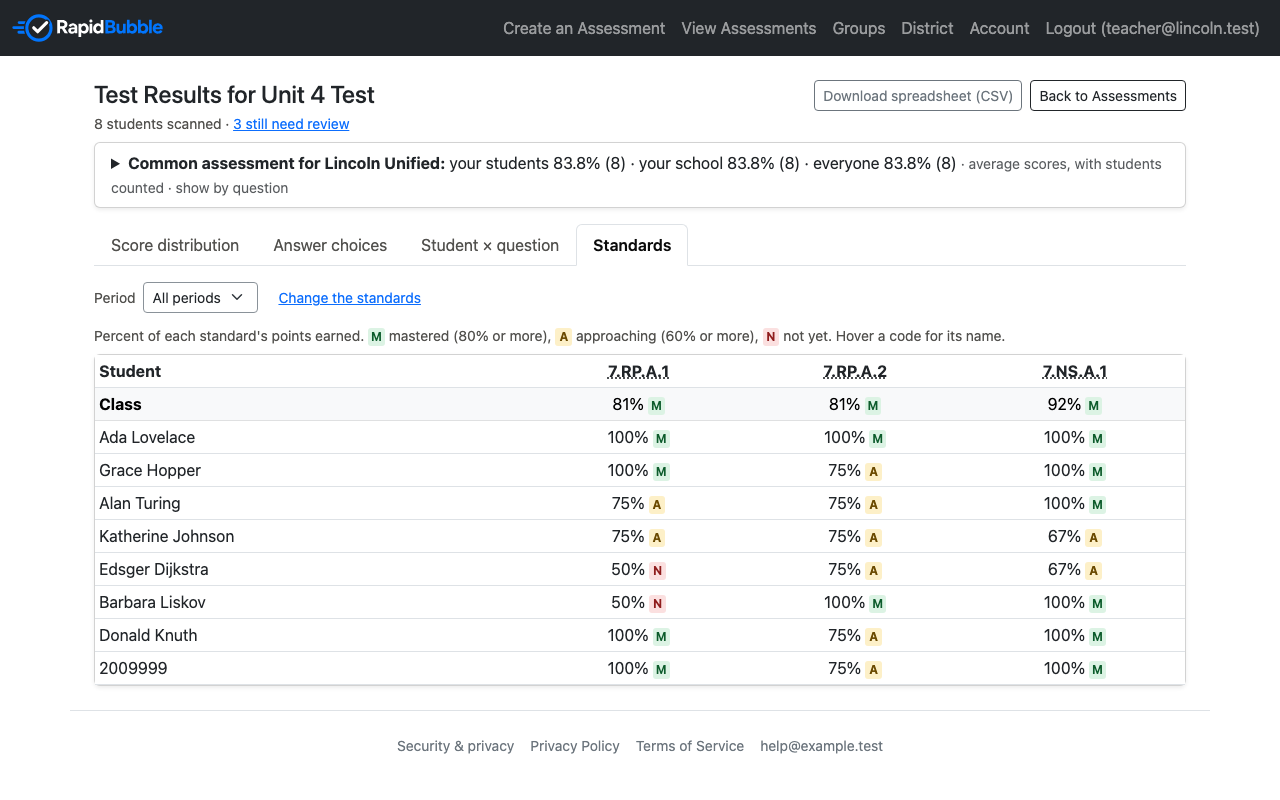
- Tag questions with Common Core Math, NGSS or your own standards. On the School & District plan, RapidBubble suggests each question's standards for you to accept (how).
- See each student's mastery of each standard: mastered, approaching or not yet, from the points they earned on its questions.
- Included free for every teacher. More about standards-based grading with bubble sheets.
Share tests with your department
- Share tests with colleagues at your school or district, and invite them by email.
- Choose whether each colleague can view, edit or re-share a test.
- Make a group for your department or PLC, and every test added to it is shared with every member.
- District and school administrators can give a common assessment and see results by school, teacher, question and standard. RapidBubble for districts.
Sign-in, privacy and accessibility
- Runs in any web browser, with nothing to install. Sign in with a password, with Google, or straight from your LMS course.
- Scanned sheets are deleted automatically after a set time, and school and district administrators see results, never scanned sheets. Security and privacy.
- Built to WCAG 2.2 Level AA, with keyboard alternatives to dragging and a table view of every chart. Accessibility.
Comparing options? See how RapidBubble stacks up against ZipGrade, GradeCam, Gradescope, Mastery Connect, PaperScorer, Akindi, FormRead and Scantron, or read the step-by-step guides.
Ready to try it with your next test?
Individual teacher accounts are free. Upload a test or enter a key, print the bubble sheets, and grade with any copier or a document camera.